📣 What “Color Depth” Means
Color depth refers to how many bits are used to represent the color of a single pixel.
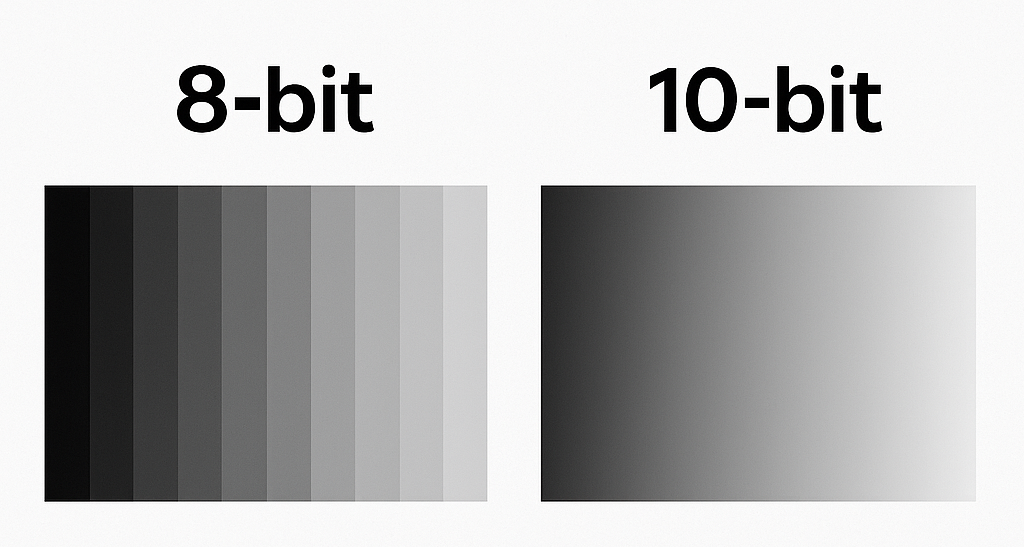
Higher bit depth → more color shades → smoother gradients → fewer banding artifacts.
🎨 8-bit Color
Bits per channel: 8 bits for each Red, Green, and Blue channel.
Total colors: 2^(8×3) ≈ 16.7 million colors.
Common formats: sRGB, standard JPEG, PNG, SDR video.
Use in Windows:
Default desktop color depth for most displays.
All desktop compositing and GUI rendering in Windows 7, 8, 10, and 11 are typically 8-bit per channel (unless specific HDR/10-bit pipeline is used).
Limitations:
Gradients may show banding (visible steps between shades).
Not ideal for color-critical or HDR workflows.
🌈 10-bit Color
Bits per channel: 10 bits for Red, Green, and Blue (30 bits per pixel).
Total colors: 2^(10×3) ≈ 1.07 Billion colors.
Advantages:
Much smoother tonal transitions—especially visible in shadows and skies.
Essential for HDR10, professional photo/video editing, and medical imaging.
📊 Summary Table
| Aspect | 8-bit Display | 10-bit Medical Display |
|---|---|---|
| Luminance steps | 256 (2⁸) | 1024 (2¹⁰) per channel — finer gradation |
| Grayscale smoothness | Prone to banding in subtle gradients | Very smooth; minimizes banding/contours |
| DICOM GSDF compliance | Challenging to map perceptually linear curve | Supports accurate GSDF mapping with high-bit LUTs |
| Diagnostic reliability | Adequate for SDR viewing, not ideal for diagnosis | Optimized for diagnostic detail and subtle contrast |
| Regulatory/QA context | May not meet stringent standards | Aligned with IEC/AAPM and QC workflows |
🩺 Why Medical Monitors Need 10-bit Color Depth
1. Subtle grayscale precision for diagnostic imaging
Medical images such as X-rays, CT, MRI, and mammography rely heavily on fine grayscale differences to reveal pathologies.
A standard 8-bit display can only render 256 discrete brightness levels (2⁸ = 256).
A 10-bit display can render 1024 levels per channel, or 4× finer luminance precision.
This extra precision helps radiologists distinguish tiny contrast variations — for example, between soft tissues, microcalcifications, or early-stage lesions that might otherwise be invisible due to banding or quantization steps.
2. Compliance with DICOM GSDF calibration
Medical monitors are required to follow the DICOM GSDF (Grayscale Standard Display Function) curve.
GSDF defines how digital pixel values (luminance steps) must be perceptually linear to the human eye.
To accurately reproduce that perceptual curve, the display must have sufficient internal bit depth (≥10-bit) and high-precision LUTs (often 12–14 bit internal processing).
Without 10-bit output, the monitor can’t achieve the smooth luminance mapping GSDF requires — leading to visible discontinuities in gradient areas.
3. Reduction of “false contouring” and banding
8-bit displays often show contour lines in smooth gradient areas (like the lung field of a chest X-ray).
10-bit displays eliminate those artificial steps, ensuring continuous tone transitions — critical for avoiding diagnostic errors.
4. HDR and high-luminance range support
Modern medical monitors (e.g., mammography and surgical displays) may have luminance ranges from 0.5 cd/m² up to 1000 cd/m²+.
To represent that range smoothly, more bit depth is required to avoid visible steps, especially in low-luminance regions where human vision is most sensitive.
5. Regulatory and quality-assurance standards
International standards (e.g., IEC 62563-1, AAPM TG-18, EUREF, etc.) assume that diagnostic displays meet or exceed 10-bit grayscale precision.
Many quality-control tools and calibration devices (like i1Display/i1D3, JND-based test patterns, etc.) depend on 10-bit output to verify compliance.
6. Color medical imaging (pathology, endoscopy)
For color-based modalities (digital pathology, dermatology, endoscopy), 10-bit depth ensures accurate color gradation and avoids clipping in high-chroma regions, leading to more faithful tissue representation.
❇️ How To Set 10-bit Color Depth Using a Nvidia Graphic Card
1. Desktop color depth settings have been located under the Display > Change resolution menu in the NVIDIA Control Panel:
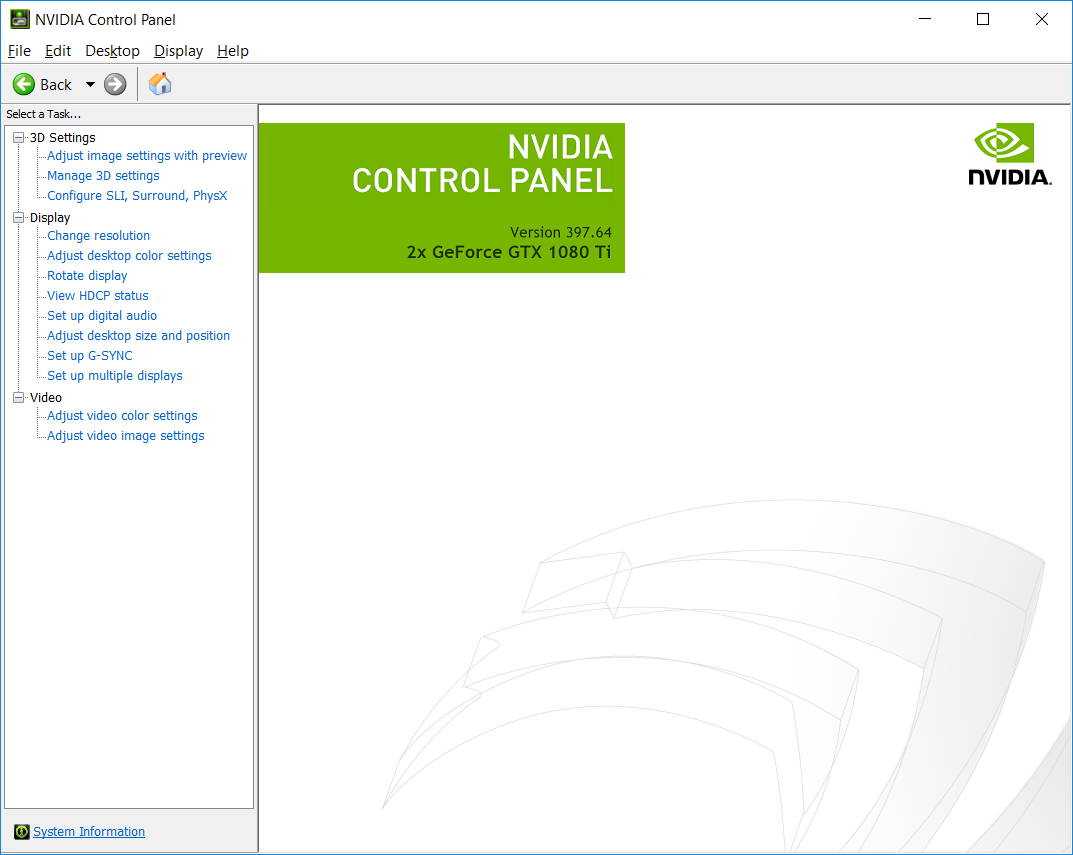
2. From the NVIDIA Control Panel navigation tree pane, under Display, click Change resolution to open the Change Resolution page.
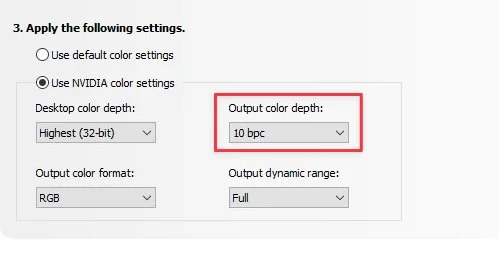
3. Click the Output color depth list arrow and then select the 10 bpc option.
🅰️ How To Set 10-bit Color Depth Using a AMD Graphic Card
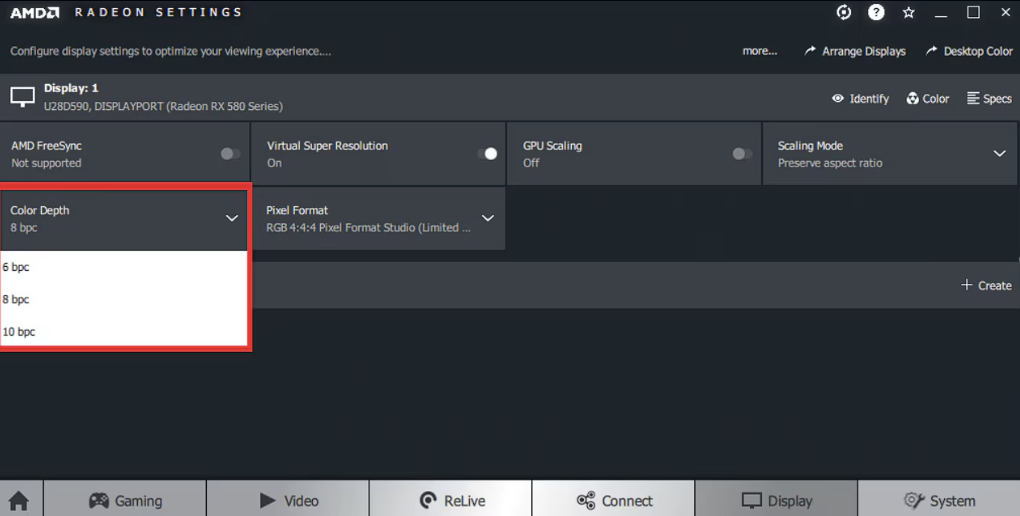
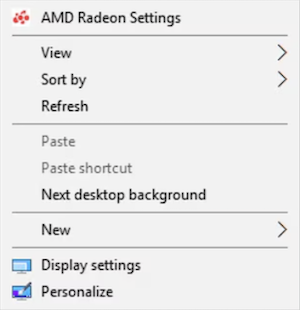
1. Open Radeon™ Settings by right-clicking on your desktop and selecting AMD Radeon Settings
2. Click on Display menu option
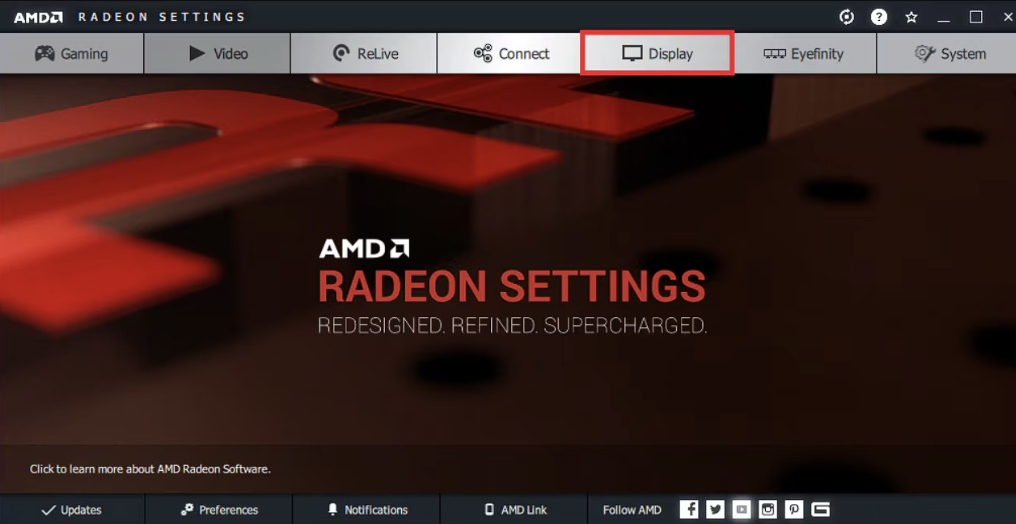
3. In the Color Depth area, select the 10 bpc color depth for the desired display. This selection is only available if multiple color depth settings are available for the display.